Daily work
Jobs and estimates
Categories, line items, fees and contingency, and how an estimate rolls up.
In short
An estimate is a tree of categories with line items underneath. Parents add up their children automatically, so you only ever type a number in one place.
An estimate is a tree of categories, and categories hold line items. A category can hold other categories, so you can go as coarse or as fine as the job needs.
Categories
Add categories on the estimate: on a proposal the page is the estimate, and on an active job it's the Budget tab. Each one has a name, and a category with children rolls its children up automatically. You never add the same money twice: a parent shows the total of everything beneath it, plus its own estimate if you gave it one.
A category is either regular or a percentage (fee or contingency, see below), set in its ⋯ menu. Whether a cost is labor, material, a subcontractor or equipment is set on each line item instead, the way accountants split it. When a category has spent more than its budget, Remaining says so in words, for example "$1,700.00 over".
That own-estimate is worth knowing about. A parent category can carry an amount of its own alongside its children, which is the usual way to hold slush for work you have not broken out yet. When the category is collapsed you see one number, the total. When it is expanded you see both.
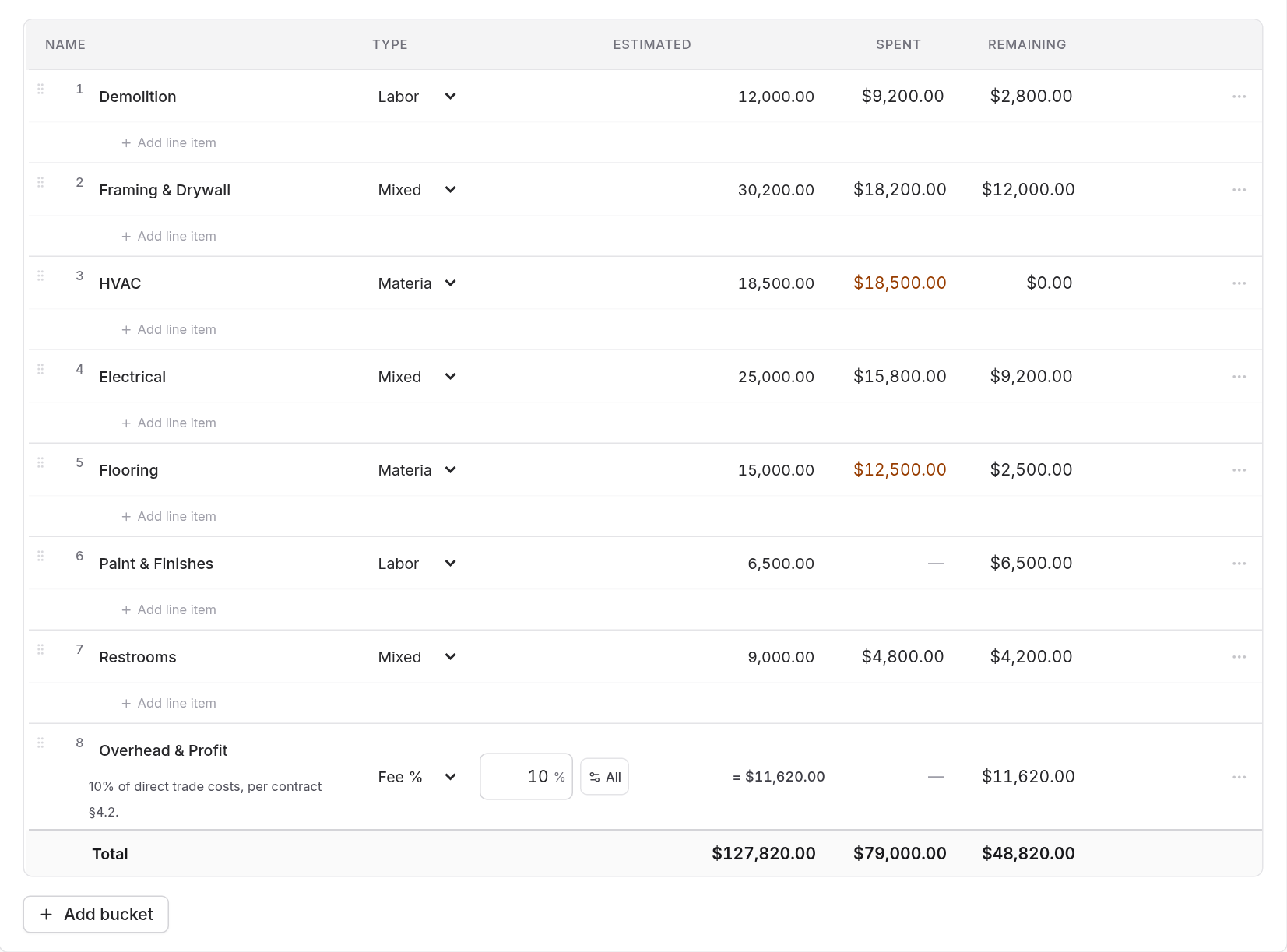
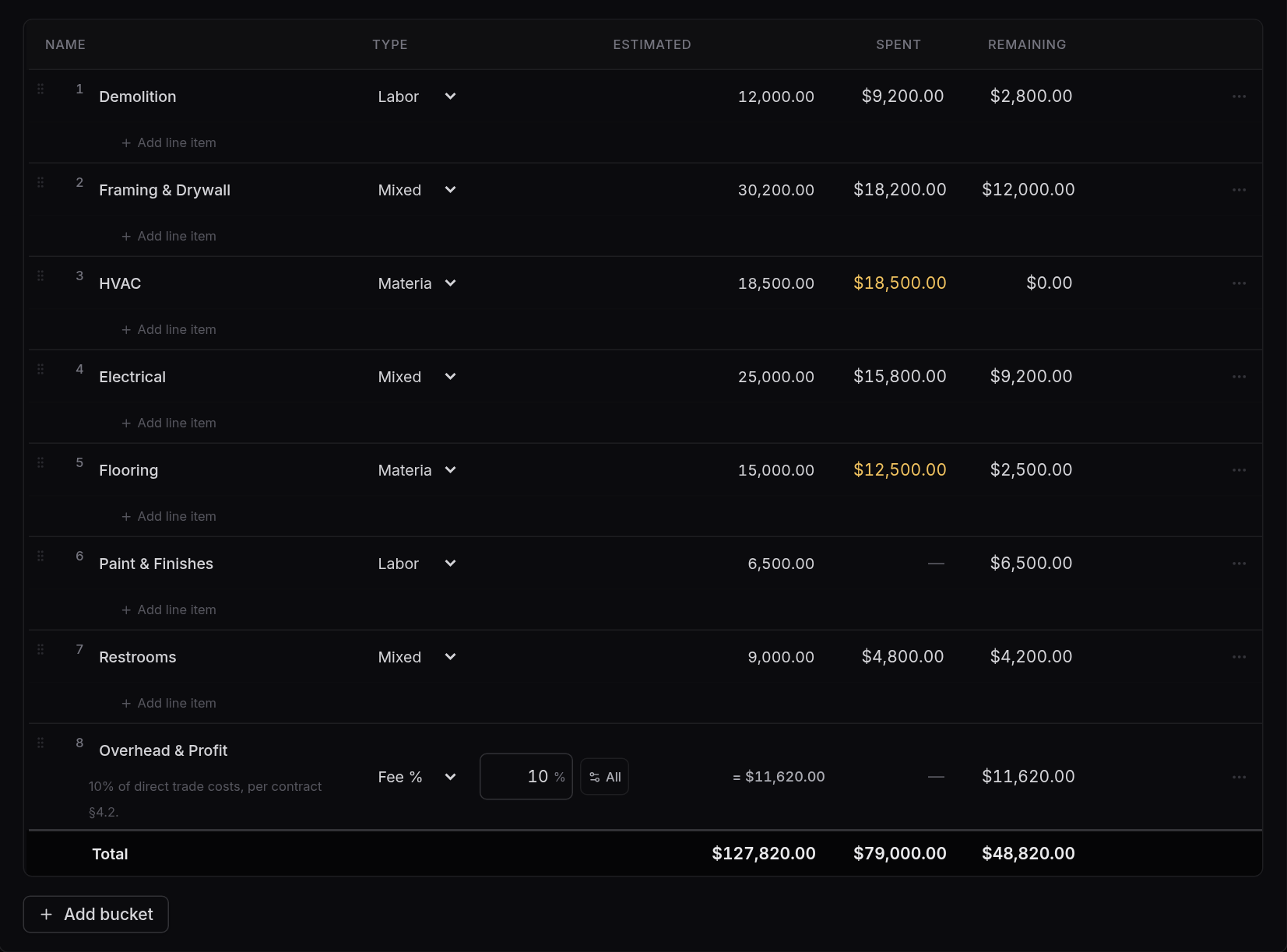
1
2
3
Categories roll up to their parent automatically.
Note
Charges attach to categories with no children. If you add a child to a category that already has spending on it, that spending stays where it is, but new charges will want a child instead. Plan the depth you want before you start categorizing.
Line items
A line item is quantity, unit and unit price. Three fields, and the total is computed.
For anything more involved than that, open the calculator with the + Item button on a category's row (or Add line item in its ⋯ menu). It handles the arithmetic you would otherwise do on paper:
- Labor, as a person times hours times a rate. People you save are reused across jobs.
- Material, as quantity times a unit price.
- Subcontractor and equipment, as a quote or rental amount.
- Lump sum, for a number you already know.
- Fee and contingency, as a percentage of whichever rows you select.
Each row you build becomes its own line item, so the estimate stays readable and the client sees real detail rather than one opaque total.
Fees and contingency
Fee and contingency are percentages, not amounts, and they follow the work. Set one up as a percentage of the categories you choose, and it recalculates whenever those categories change. Add scope, and the fee moves with it.
Two things to know:
- A fee never charges on another fee unless you explicitly select it. You do not earn fee
on your fee by accident.
- A fee set to a percentage of everything means its own siblings, not the whole job. A fee
nested inside a group marks up that group.
If you need a fee to depart from its own formula on one job, you can override it from the schedule of values on the job's Project Costing tab, without touching the formula itself. See project costing.
Allowances
An allowance is a budget the client chooses within: "$3,000 for tile", "$1,500 for light fixtures". Open the category's ⋯ menu and choose Mark as allowance (on a phone, tick Allowance in the category's edit sheet). The category gets an Allowance tag, and the proposal shows it as "Allowance: $3,000.00" so the client knows the number is theirs to spend.
Only a category with no sub-categories can be an allowance, because spending is tracked on that category itself. Fee and contingency lines can't be allowances.
When the spending passes the allowance, the category shows Over allowance by the difference and a Draft change order link. It opens a change order already filled in for the overage, ready to send for the client's signature. See Change orders.
Pricing from past jobs
Give each job a job type (Kitchen, Bathroom, Addition and so on) when you create it, or later from the pencil next to its name. The type is how the app finds your similar work.
When you start a new proposal from a past job, choose where the numbers come from:
- Its budget: the estimates you gave that client, change orders included.
- What it actually cost: each category starts at what was really spent on it. A category
that had line items gets one line for the spend instead, so nothing is counted twice. Fees keep their percentages. Spending that was never put in a category isn't included, and the form tells you how much that is.
While a proposal with a job type is still a draft, it shows How your last jobs came in: up to three finished jobs of the same type, each with its budget against what it actually cost, and the categories that ran over most often. Those are the lines worth a second look before you send the price.
Keeping the table readable
Drag a category by its handle to reorder or renest it. Drag a column edge to resize it, and click a column header to sort. Widths are remembered per table on your device.
Collapse a group to see its total instead of its parts. The collapsed state is remembered per job, so a long estimate stays at whatever level of detail you left it.